
Formulas
A formula in Excel is written against fixed cell references. Every time a new row or column is added - a new account, a new month - existing formulas need to be checked, and often copied or dragged, to cover it. A MODLR formula is written against a restriction of Dimension elements rather than a range of cells, so it can carry on applying to elements that don't even exist in the model yet.
Formulas in Excel
As a workbook grows - new months added as columns, new accounts added as rows - every formula that should cover that new data has to be identified and either extended or copied into place. Miss one, and a total is quietly wrong until someone notices.
Creating a Formula in MODLR
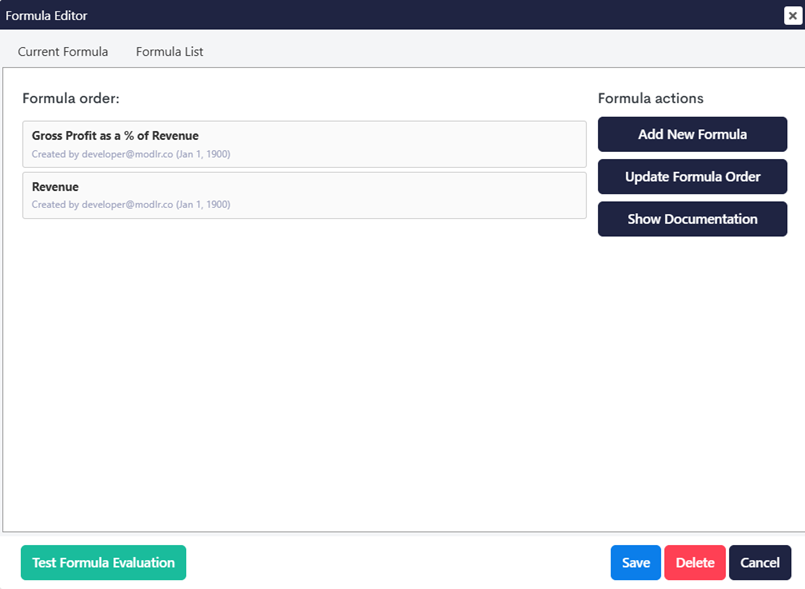
Formulas live on a Cube and are managed through the Formula Editor. A Cube can hold several formulas, run in order, all managed from the Formula List.
Restricting a Formula
Rather than pointing at a fixed cell or range, a MODLR formula is restricted to specific elements on each Dimension. Here, Gross Profit as a % of Revenue is restricted to the Gross Profit as a % of Revenue element on Account and Amount on Revenue Measures, but Time is deliberately left as Don't Restrict.
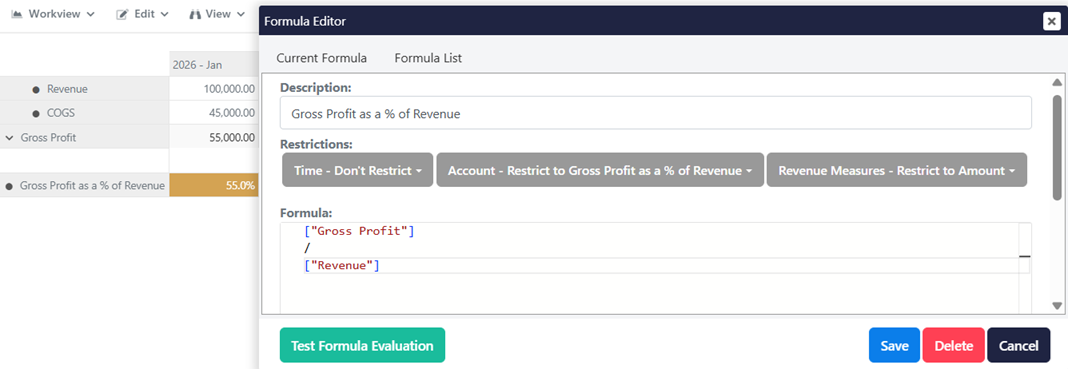
Because Time isn't restricted, the formula isn't tied to any particular month, Quarter or Year - it evaluates for every element on the Time Dimension wherever the Account and Revenue Measures restrictions are met.
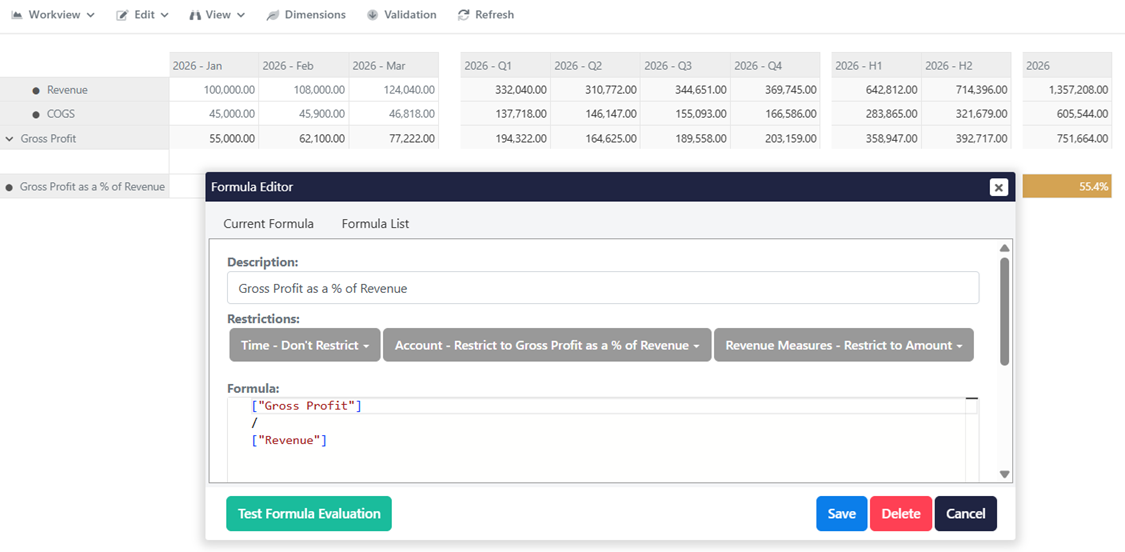
One formula, every Time period
The result is a single formula that produces a value for Jan, Feb, Mar, every Quarter, every Half and the Full Year - all without writing a separate formula for each, and without having to specially handle the Quarter, Half and Full Year totals covered in Aggregation / SUM.

The formula keeps applying as new Time elements are added
Because the formula was never restricted on Time, it isn't limited to 2026 either. As soon as a new Time element is added to the model - for example when 2027 is built - Gross Profit as a % of Revenue starts calculating for Jan 2027, Q1 2027 and 2027 itself automatically, with nothing to update on the formula.
In Excel, adding a 2027 column means copying the % of Revenue formula into it, and checking that every formula it depends on has been extended too.
Formula Documentation
Every formula on a Cube can also generate its own documentation directly from the Formula List, via Show Documentation.
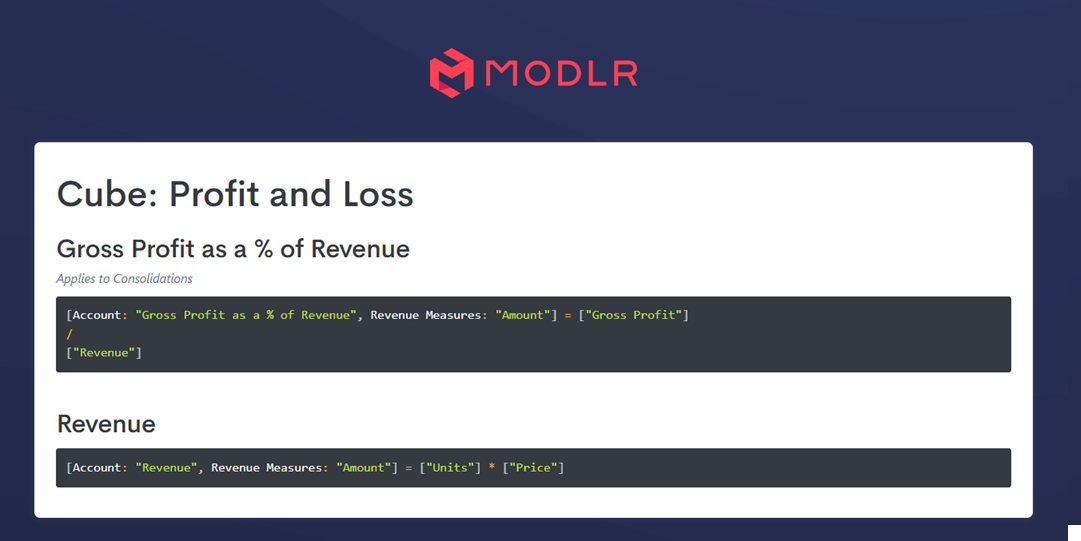
Because this documentation is generated from the live formula and its restrictions, it can't drift out of sync with what's actually being calculated - unlike a written explanation of an Excel formula, which has to be kept up to date by hand.
Illustrating the improvement
- In Excel, every new row or column carries a risk that a formula isn't copied, is dragged into the wrong range, or is missed entirely - errors that usually only surface once a total already looks wrong.
- In MODLR, formulas are restricted to Dimension elements rather than cell positions, so they keep calculating correctly as the model grows - new months, new accounts, or new years - without being touched.
- Formula documentation is generated directly from the formula itself, so it always reflects what the model is actually doing.