
Cube Logs
Every value in a Cube can keep a log of every change ever made to it. Each entry records the complete address of the cell that changed, its value before and after the change, who made the change, and where the change was made from.
Anatomy of a Log Entry
A single Cube Log entry looks like this:
2026-01-31 09:14:47 +0000 actual 2026-jan sydney-01 widget-a revenue 5931.00 6000.00 developers@modlr.co Workview:b2e7e60b3cc8f7e07227d567cdae1b23Reading it left to right:
- Timestamp -
2026-01-31 09:14:47 +0000, when the change was made, in UTC. - Dimension elements -
actual,2026-jan,sydney-01,widget-a, and so on, one element per Dimension on the Cube. Together these form the full address of the cell, in the same style covered in Understanding Data, finishing with the Measure that was written to (revenue). - Value From -
5931.00, the value at that address before the change. - Value To -
6000.00, the value at that address after the change. - Who - identifying who made the change:
developers@modlr.co. - Source -
Workview:b2e7e60b3cc8f7e07227d567cdae1b23, where the change was made. The Source is the ID of the Workview, Card, or Process that affected the cell.
Where changes come from
The Source field records where a change originated, not just what changed. A change can come from a Process, a Workview, a Card, and other write paths through MODLR - including the MODLR Excel Add-in, where changes made through a CubeGet or CubeSend formula register in the log the same way as changes made from a Workview or Card. When a change isn't made directly by a person - for example, a Process loading actuals from a source table - the Who fields are left blank instead:
2026-01-31 03:00:12 +0000 actual 2026-jan sydney-01 revenue 5654.00 5931.00 Process:a1b2c3d4e5f6a7b8c9d0e1f2a3b4c5d6Here the change came from a Process rather than a person, so the Who fields are blank and the Source identifies the Process by ID rather than a Workview. This entry also comes from a different Cube to the one above, one without a widget-a Dimension, which is why it has one fewer dimension element.
Accessing Logs
The full log described above is kept at the Cube level, but it's rarely necessary to read it in that raw form. The same history is also available at the cell level, as a Cell History view, from a Workview, from Excel, or from a Card.
Cell History in a Workview
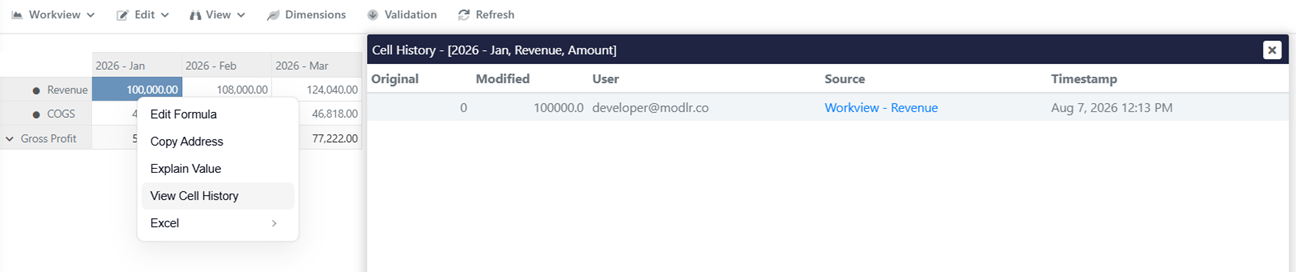
Right-click any cell in a Workview and choose View Cell History to see every change made at that intersection - its original and modified value, who made the change, where it came from, and when.
Cell History in Excel
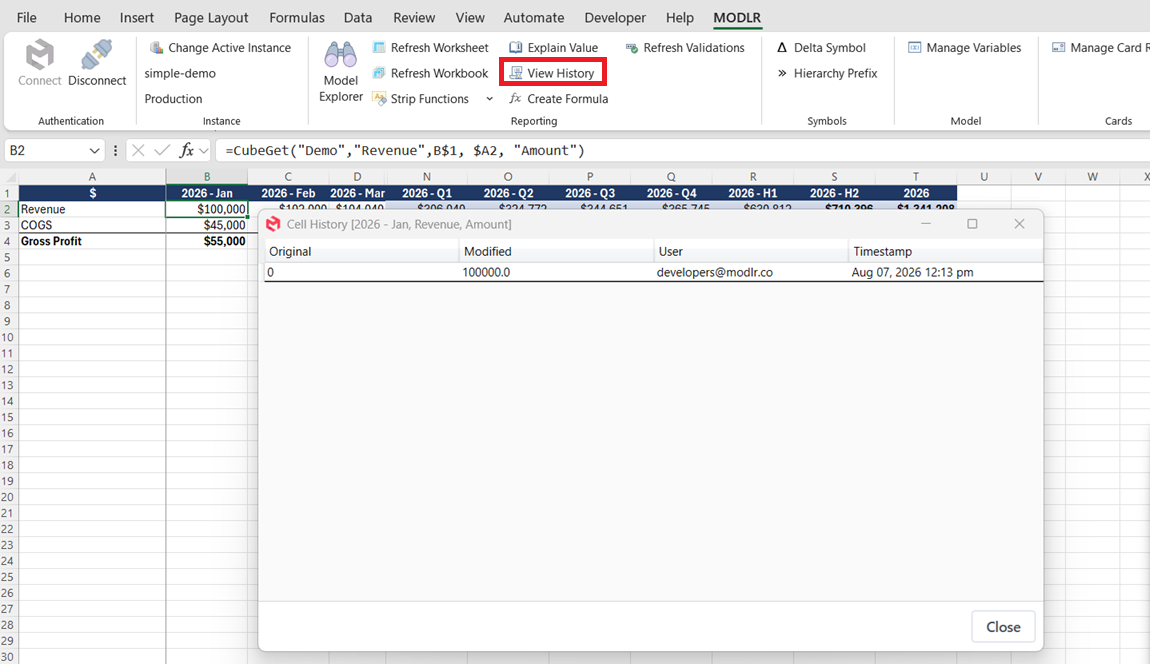
The same history is available from the MODLR Excel Add-in. With a cell containing a CubeGet formula selected, click View History on the MODLR ribbon to open its Cell History.
Cell History on a Card
The same Cell History is available on a Card, from an Input component whose Input Style is set to Indirect.
Turning logging off
Logging is controlled per Cube, and can be turned on or off using cube.log in a scripted Process, or the Cube Set Logging node in a visual Process. The current state can be checked with the same cube.log function, or the Cube is Logging node.
Turning logging off is common as part of a Cube load. When data is loaded into a Cube from a Process - for example, actuals loaded from a source table on a Schedule - a Value From/Value To entry for every cell touched is redundant: the values are already stored in, and known to come from, that source table. Disabling logging for the duration of the load avoids writing a log entry for every cell, which keeps a large load fast without losing any information, since the source table already accounts for where the data came from.
TIP
Logging can be turned back on once a load has finished, so that any changes made afterwards - for example, a user editing a Draft Budget in a Workview - continue to be logged as normal.