
Formula Validation
Why a Formula Validation
A formula validation provides more flexibility than a simple validation. Rather than always presenting the same fixed list, a formula validation lets the list of valid options change dynamically, depending on the value of another cell or the current dimension context.
Formula validations utilise the MODLR formula system.
Creating a Formula Validation
Consider a cube with a Scenario dimension, where the set of valid months should differ depending on whether the current Scenario is Actual or Budget.
The "Time by Scenario" hierarchy contains two parents: one grouping "Actual Months" and one grouping "Budget Months".
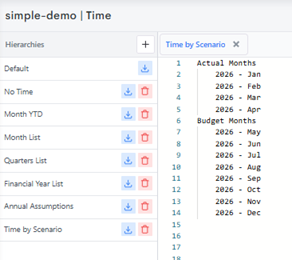
In the workview, open the Validation tab on the workview to configure a rule against the Time Mapping measure. Instead of selecting a fixed list, this time the rule is defined using the Formula field, referencing the Scenario dimension to determine which parent's children should be valid.
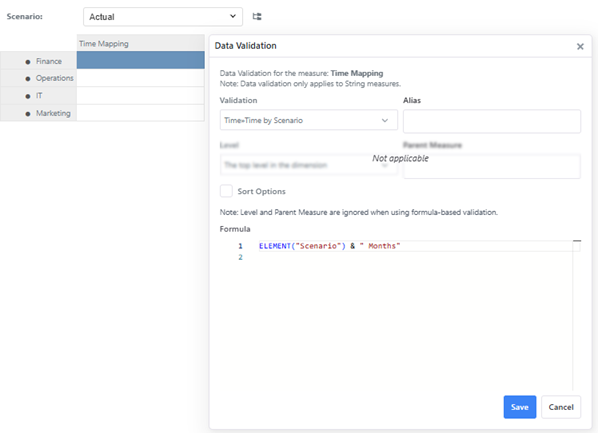
Once saved, switching the Scenario context changes the list of valid options presented at data-entry:
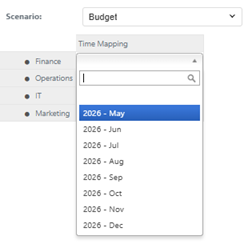
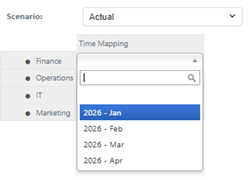
The validated string measure now displays a dropdown list of Months scoped to the current Scenario.
Children or Descendants
A formula validation evaluates to the name of an element, and the dropdown lists that element's immediate children - one level down, no further.
Take a Location dimension whose Default hierarchy groups countries by region:
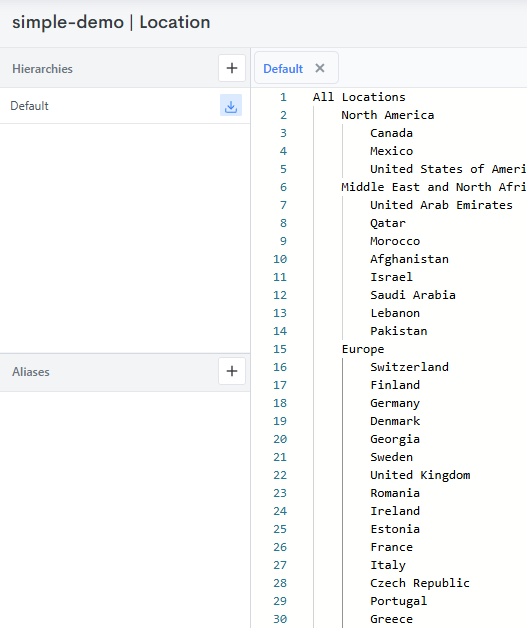
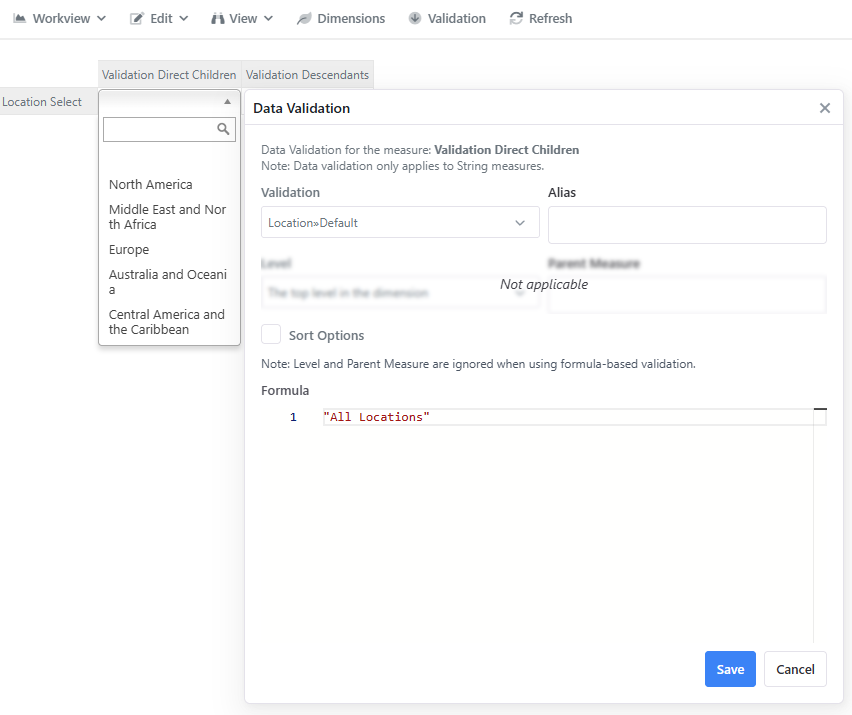
A formula of "All Locations" lists the regions directly beneath it - North America, Middle East and North Africa, Europe and so on - but not the countries within them:
To list everything beneath an element instead, append the [&] operator directly to it. A formula of "All Locations[&]" skips the regions and lists the countries below them - Canada, Mexico, United States of America, United Arab Emirates and onward through the hierarchy:
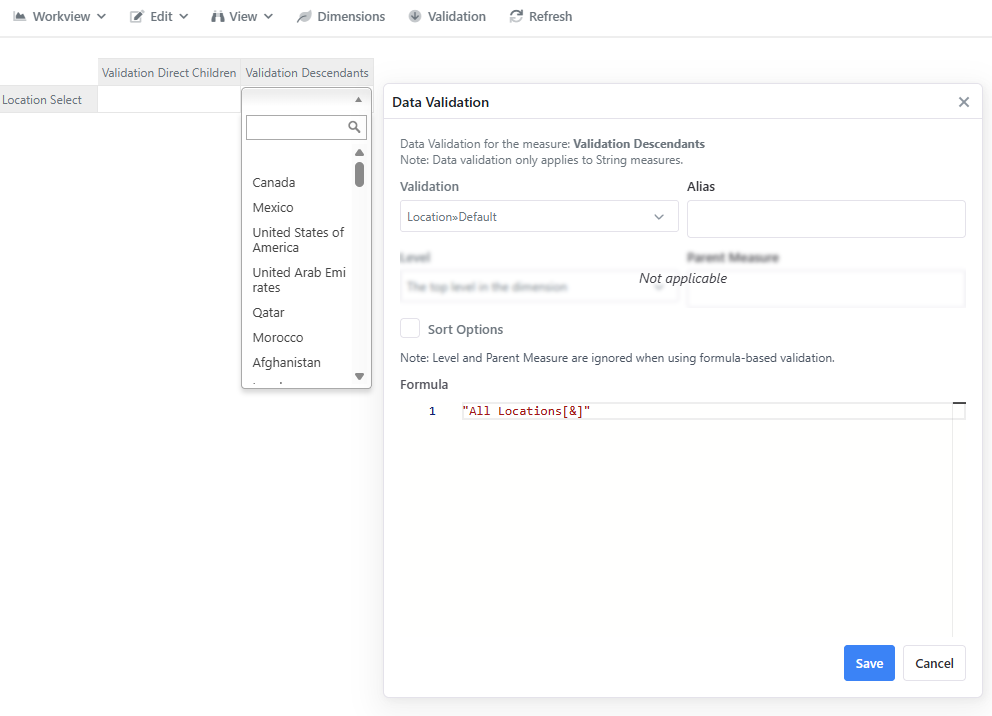
This avoids building a separate flat parent just to feed a validation: the same hierarchy serves both a region-level dropdown and a country-level one.
[&] with nothing on the right
Used between two parents, [&] returns the descendants they share. Placed on the end of a single element with no second parent, there is nothing to intersect with, so it returns all of that element's descendants within the hierarchy.
Scoping a formula validation to the current user
The Scenario dimension isn't the only thing a formula validation can key off. Using the reserved user-id variable, the same Formula field can scope the valid options to whoever currently has the Workview open instead of a dimension in context - see User-Based Validation.